> For the complete documentation index, see [llms.txt](https://engyon.gitbook.io/engyon/llms.txt). Markdown versions of documentation pages are available by appending `.md` to page URLs; this page is available as [Markdown](https://engyon.gitbook.io/engyon/en/reference/procedures.md).
# Procedures
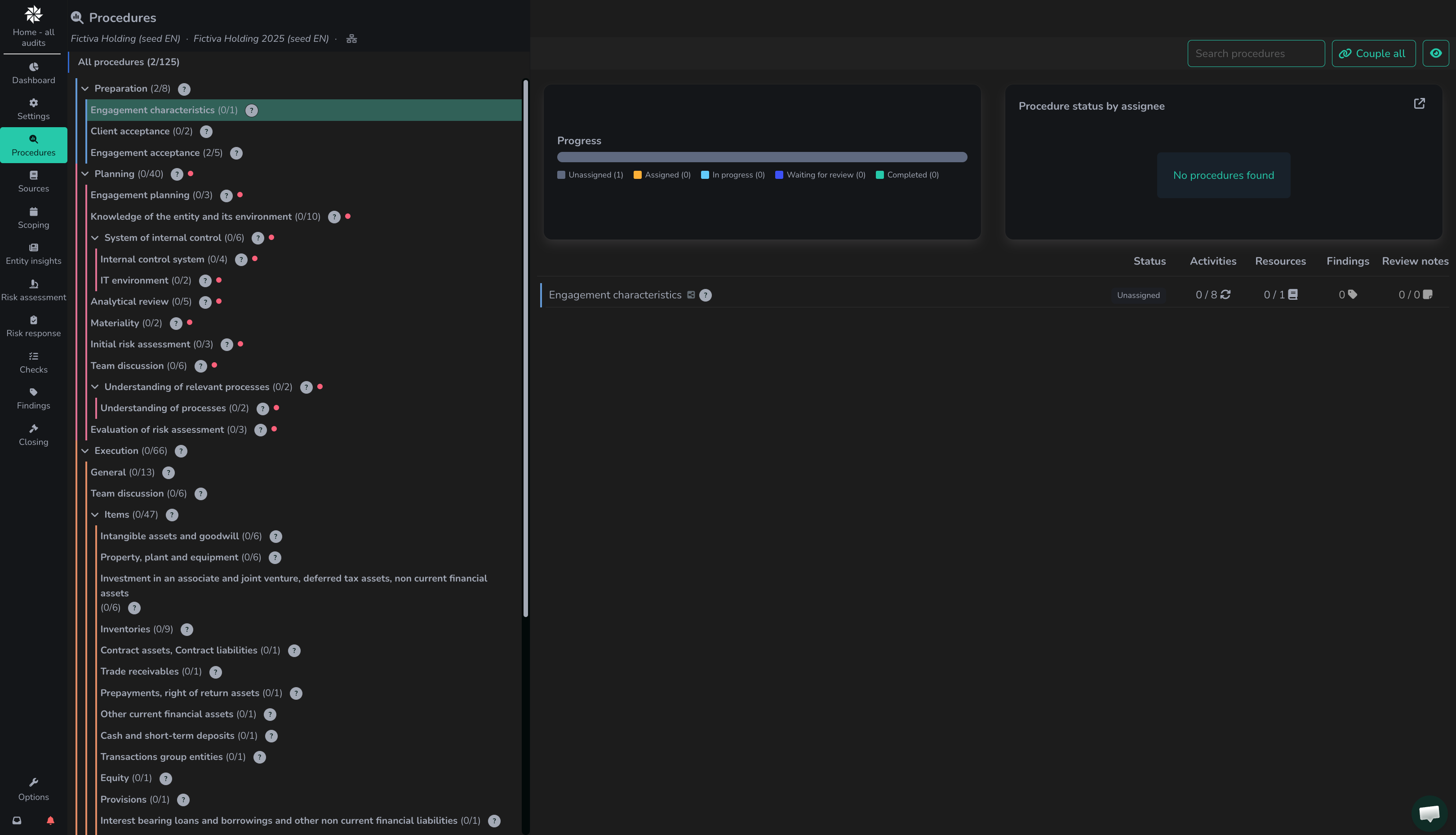
On this screen, users can go through, assign, and track the status of all work steps and activities of the audit. Clicking the Procedures button in the navigation on the left takes you to the navigation of all procedures within the audit. On the left, you have all phases, and for each phase, you get an overview of all activities located in that phase. Hover over a phase where a period has been set: you will see the start and end date. If the phase ends within 7 days, that warning is displayed in the same text and a red dot marks the phase. The same applies to the phase list on Sources. By performing work, such as entering processes, systems, and line items, additional procedures are introduced that become visible in this structure.
After opening one of the procedures, the procedure screen becomes visible.
On the left is the context, on the right is the work. See [Operation](/engyon/en/reference/operations.md). On this screen:
1. A left column with tabs General (details, who is assigned to it, the current status), Instructions (organisation instructions, only if there is text or a document; see [Organisation instructions](/engyon/en/admin/content/organisation-instructions.md)), Review notes (review notes for this procedure, optionally linked to an activity), and Settings (version and linked audits). Via Version, you can check for updates for this procedure; see [Executing content updates](/engyon/en/how-to-guides/audit/performing-a-content-update.md).
2. A right column with tabs. In this case, we have the following tabs:
1. Activities
2. Findings
3. Sources
Via Review notes in the left column, you continue to see the activities in the right column while you follow up on a review note. You create new notes via new note. How to link a note to an activity and close it is described in [Review notes](/engyon/en/reference/review-notes.md).
#### Activities
An activity from the work package can have a Conclusion: text, a number, one choice, or several choices. That form and the options belong to the activity. You do not add them yourself and you do not change them.
An activity you insert with Add activity has no Conclusion with fixed options. That activity has a text field Explanation.
Once the activity is finished, you mark it complete. Further editing is then no longer possible.
In a text field, you see the formatting as text until you use the eye icon. How the pencil icon, the formatting, and the eye icon work is described in [Operation](/engyon/en/reference/operations.md).
Spell check in such a field is disabled. After filling in the explanation, the Engyon logo appears. This allows you to request an AI review, with a proposal to rewrite the text.
#### **Procedure paths**
Sometimes a visual indicator is visible in an activity indicating whether an answer to an activity can also make follow-up questions visible.
#### Status of procedures
Procedures can be in different phases:
* Draft phase: all procedures added to systems, processes, controls, and line items are first in a draft phase. Once procedures are approved, the specification can be closed and the procedures can be executed. Procedures in the draft phase will have a **draft label** visible.
* Execution phase: during the execution phase, it is possible to record results. Once all documentation is done, procedures can be closed.
The label draft is the phase (specification). In addition, the work step has a status, for example in progress or waiting for review. draft plus waiting for review means that the specification is waiting for approval — not that the execution is ready for review. After approval, the draft label disappears and you can execute activities.
## Dashboarding within procedures
Within All procedures you can search the work steps, and you can filter across all procedures or within one phase.
The filter is behind the eye icon (:eye:). Under Users you choose people, and above that what the choice means: Assigned to, Executed by, or Reviewed by. The list in front of that stays empty, or you set it to not. Under Status you filter on Specification and Execution. In a group audit you also turn Show read-only procedures on or off. The choice applies after Apply. The filter stays when you open a work step and come back via Procedures.
## Related manuals
* [Closing a procedure](/engyon/en/how-to-guides/procedures/closing-a-procedure.md)