> For the complete documentation index, see [llms.txt](https://engyon.gitbook.io/engyon/llms.txt). Markdown versions of documentation pages are available by appending `.md` to page URLs; this page is available as [Markdown](https://engyon.gitbook.io/engyon/en/reference/materiality-and-scope/scope.md).
# Scope
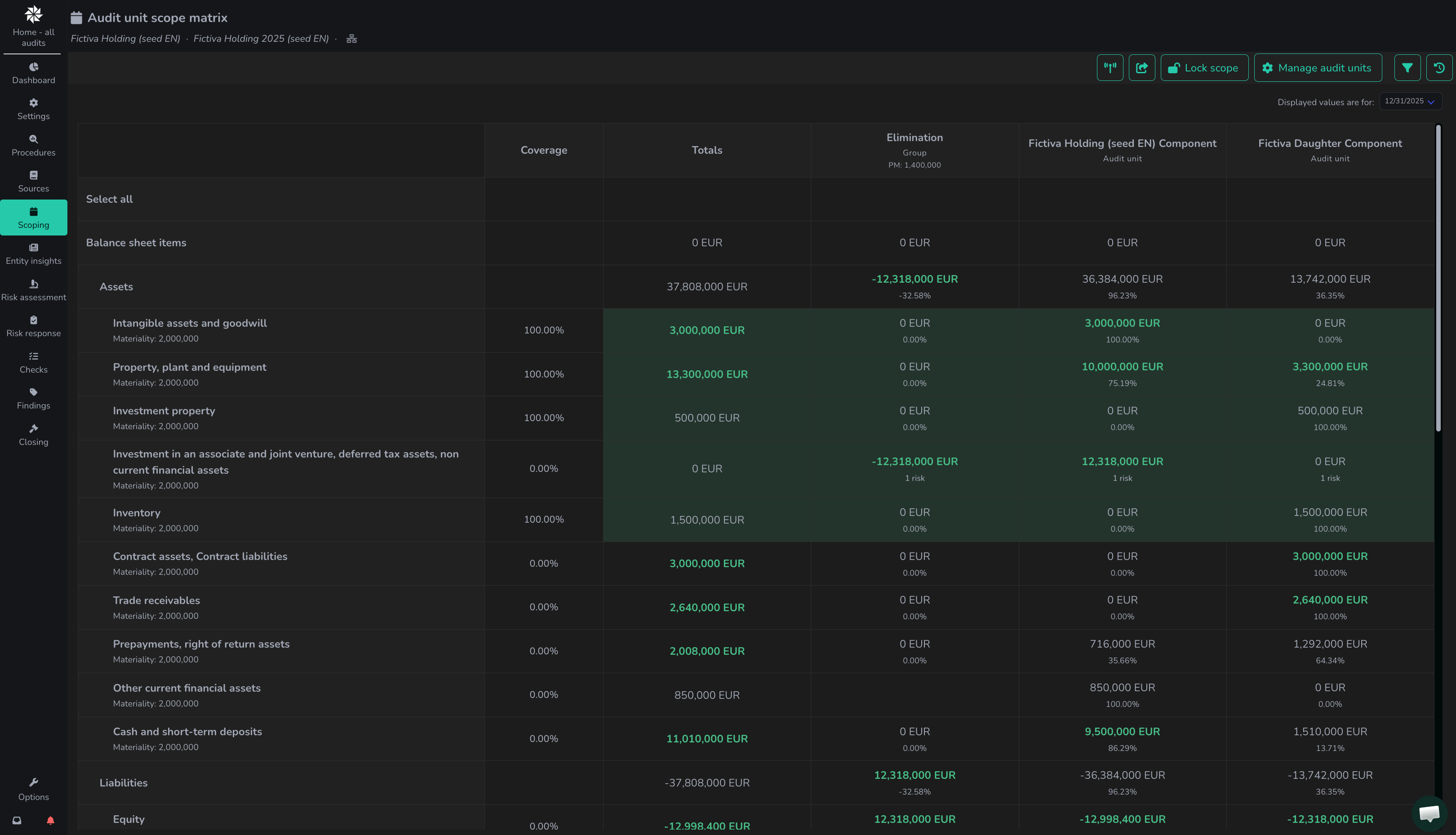
On this screen, users can bring financial statement line items and audit units in or out of scope based on imported figures and materiality.
### Related information
This chapter contains detailed information about scoping. Basic information on this subject can be found on the following pages:
1. [Training module 5: Importing figures, materiality and scoping](/engyon/en/training/training-english/module-5-importing-financial-data-scoping-and-materiality.md)
2. [Scoping audit units (group components)](/engyon/en/reference/group-audits/scoping-of-audit-units-group-components.md)
### Scoping line items
After [importing figures](/engyon/en/reference/importing-figures.md) and determining materiality, you can start scoping financial statement line items and audit units per line item. The scoping matrix contains the line items with the imported figures.
{% hint style="info" %}
In Scope, you set line items and audit units in or out of scope. You do not choose categorical or functional here: that is the Reporting framework when [creating the audit](/engyon/en/admin/organisation/create-an-audit.md). This choice cannot be changed after creation.
{% endhint %}
Group headers, such as Profit and loss account items and Assets, show the same total per audit unit as on Financial statement line items. This allows you to see the result and the balance sheet total without a separate line.
On this screen you can do the following:
1. The figures for line items that are greater than the overall materiality (or performance materiality, depending on the chosen filter settings) are displayed in bold dark green as an indication.
2. The number of risks linked to a line item and audit unit, and how many of those are significant, is displayed in the cell.
{% hint style="info" %}
Under an audit unit, Scope shows PM once that unit has a performance materiality. That amount comes from [Allocating materiality to components](/engyon/en/reference/group-audits/assign-materiality-to-components.md). Clearing the allocation on the group does not remove PM here.
{% endhint %}
### Filter options
By clicking the filter button in the top right of the scope screen, you can adjust the following filters:
1. **Materiality type**: this is the amount above which figures are marked green as an indication (see step 1 above). Here you can choose between 'overall materiality' (selected by default) and performance materiality.
2. **Data source**: the data used for scoping: you can choose from:\
\- Automatic: Engyon chooses the highest level of figures that have been imported\
\- Financial statement line item values: figures from an imported annual report or consolidation sheet\
\- General ledger account values: figures imported from trial balance(s). When you choose this, you can then choose whether you want to show figures without adjustments, with accepted adjustments or with non-accepted adjustments;
3. **Always show the in-scope and out-of-scope counts**: when you enable this option, the 'coverage' column per line item displays the total values of all audit units in scope and out of scope.
{% hint style="info" %}
For minimal procedures on the group, the Elimination column (subtitle Group) must be green for each line item, even when it shows 0.\
When you scope at least one audit unit on a line item, Elimination turns green as well. That is what creates the minimal procedures for that line item on the group, once per line item.\
\
By clicking the total amount of the line item in the Totals column, you scope all audit units and the group in or out at once.
{% endhint %}
{% hint style="info" %}
If you want to perform a **preliminary scoping** before year-end based on interim figures or figures from the previous financial year, this is possible in Engyon.
To do this, import the relevant figures with the **balance sheet date of those figures** (for example 30‑09‑202x). In the *Scope* screen, you can select which figures you want to use for the preliminary scoping in the top right under **'Values shown are for:'**.
When figures other than the year-end figures are shown in the scoping screen (i.e. figures with a date other than the end date of the audit period as set in settings), an asterisk (\*) appears after the numbers. Engyon uses this to show that you are working with a different balance sheet date than the final annual figures. This asterisk is for indication and has no further consequences.
You can then import the **year-end figures** with date **31‑12‑202x** (or another date for a broken financial year) and filter on them in the *Scope* screen. The initial scoping of line items then remains visible and you can, if desired, adjust it based on the year-end figures.
{% endhint %}
### Insignificant line items
For all line items for which figures have been imported, but which have *not* been scoped in, a work step Insignificant line item is automatically created in the work program of that line item.
In this work step, you can substantiate **why** the line item has been classified as *insignificant*.
{% hint style="info" %}
On the group, the antenna looks at the amount of that group, not at the total of the audit units. A 0 in the Elimination column does not count. Engyon then does not create Insignificant line item, even when an audit unit that is out of scope does have an amount.
{% endhint %}
{% hint style="info" %}
Engyon never automatically deletes previously created work steps, to prevent work steps from disappearing unintentionally.
If a material line item was initially *not* in scope, resulting in an Insignificant line item work step being created after pressing the antenna button, and this line item is later brought into scope after which the antenna button is pressed again, the previously created work step remains.
In that case, you must manually delete the Insignificant line item work step.
{% endhint %}
## Related manuals
* [Bringing line items into scope](/engyon/en/how-to-guides/materiality-and-scope/bringing-line-items-in-scope.md)