> For the complete documentation index, see [llms.txt](https://engyon.gitbook.io/engyon/llms.txt). Markdown versions of documentation pages are available by appending `.md` to page URLs; this page is available as [Markdown](https://engyon.gitbook.io/engyon/en/reference/materiality-and-scope.md).
# Materiality and Scope
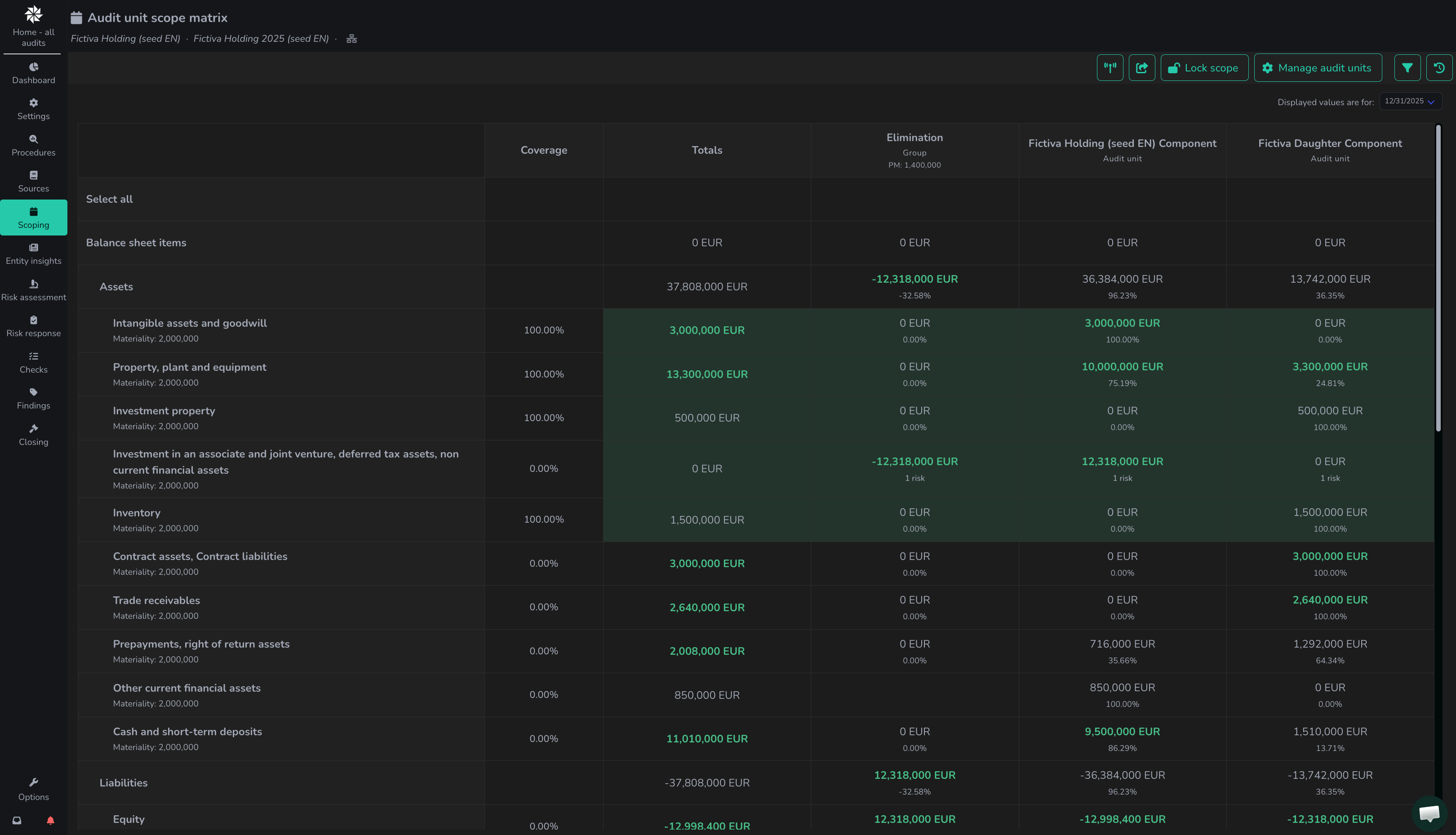
On this screen, users can record materiality and bring financial statement line items into scope per audit unit in the scoping matrix.
## Materiality determination (basic)
Engyon calculates materiality based on benchmark times percentage. This results in a materiality amount per benchmark. Subsequently, the lowest materiality is chosen from the benchmarks that have been selected.
The benchmark thus indicates the main driver of the organisation. At the same time, a certain item can be relatively large, so that a percentage thereof could still lead to too high a materiality. By using the lowest result, the calculation remains cautious and in line with the NEMAC model of the NBA.
How you should see it is that if all sliders are to the left, you end up at the bottom of the bandwidth. (the ones at bandwidth). All sliders to the left = high percentage and therefore higher materiality.
See [Recording materiality](/engyon/en/how-to-guides/materiality-and-scope/recording-materiality.md) for more information.
## Scoping matrix (basic)
The scoping matrix contains the line items with the imported figures:
It is possible to do the following on this screen:
1. Based on professional judgement (based on, among other things, materiality, coverage per line item, and qualitative aspects such as the presence of risks on a line item), you determine whether a line item for an audit unit is in scope. You can do this by clicking on the line item. The respective cell will then turn green.
2. Locking and unlocking the scope. When the scope has been approved, you can lock it. This means it becomes clear to all colleagues in the team in the application which line items are and which are not in scope.
3. When the scope is locked, you cannot bring line items in or out of scope. Locking can only be done by certain roles.
4. When the scope has been recorded, standard procedures can be automatically added for all line items that are in scope of the audit. You can start this process by pressing the icon (broadcast tower) :tower-broadcast:.
See the [scope](/engyon/en/reference/materiality-and-scope/scope.md) page for more information.