> For the complete documentation index, see [llms.txt](https://engyon.gitbook.io/engyon/llms.txt). Markdown versions of documentation pages are available by appending `.md` to page URLs; this page is available as [Markdown](https://engyon.gitbook.io/engyon/en/reference/compliance-dashboard.md).
# Compliance dashboard
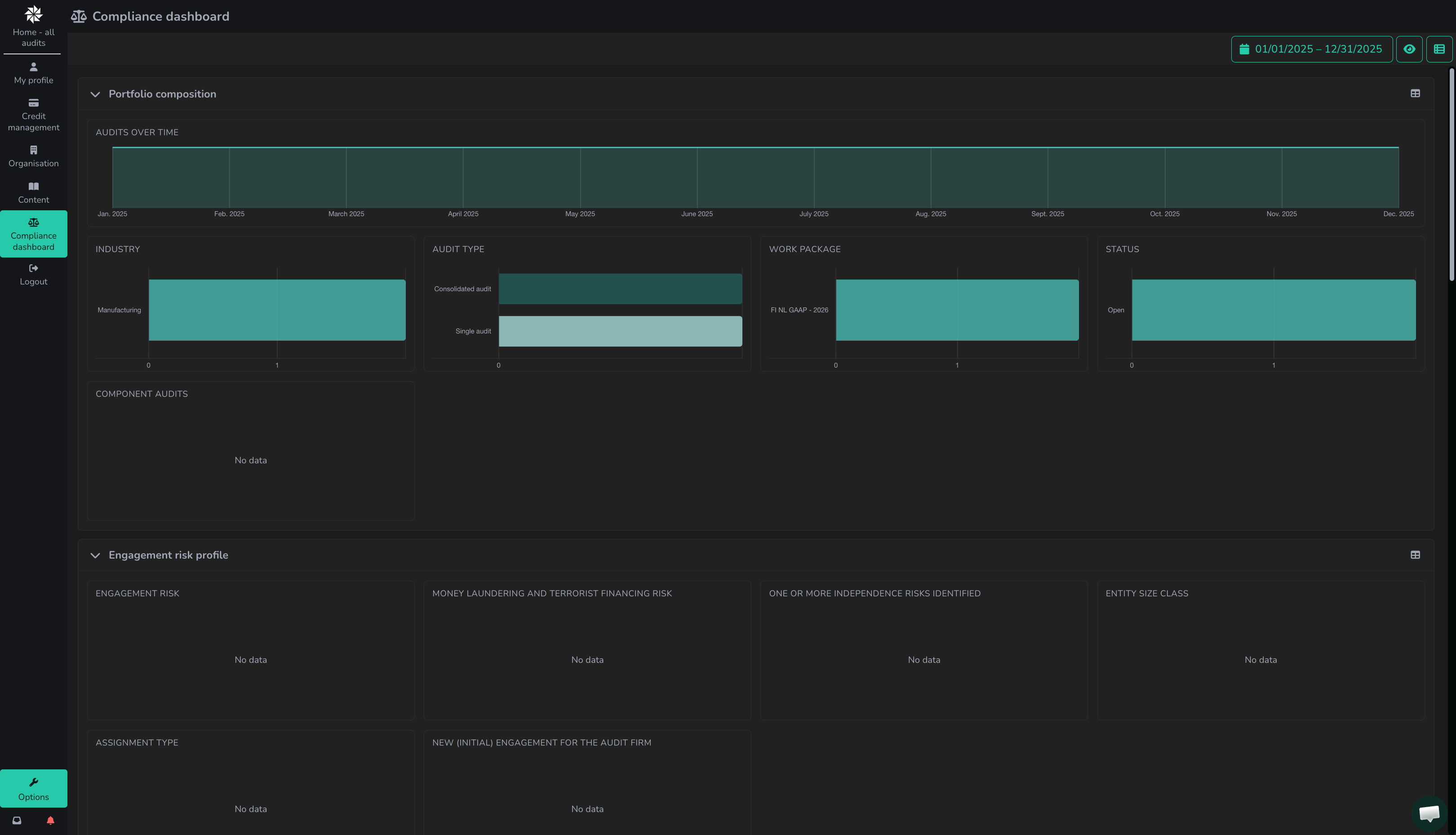
The Compliance dashboard provides insight into an audit firm's engagement portfolio. Which data and visualisations you see depends on your role and involvement in audits.
The dashboard helps users, such as engagement leaders, compliance officers, and directors of audit firms, signal trends within the audit portfolio and identify audits that require extra attention. This gives them better insight into the quality, risks, and progress of audits within the entire portfolio.
This is a different screen from the [dashboard](/engyon/en/reference/dashboard.md) within an audit.
### Where to find it
The menu item Compliance dashboard is located under Options (bottom left) for an **Account Manager** or **Reader** of the audit firm. Client users do not see it. The screen is not within an audit. If you are in an audit, click (bottom left) on Options and then in the menu on the left on Compliance dashboard.
### What you see on the screen
At the top, you choose the audit period and, under audits, whether you see Organisation details or audits. audits is off until you want to count audits of test clients.
Below that are graphs about the portfolio: portfolio composition, audit periode, Detailed Description, IT environment, Create risk, materiality, Progress, Create risk, Findings and Closing. At the bottom is the Audits table. A graph limits that table to the audits that belong to the chosen bar. A row opens more detail of that audit.
### Which audits you see data from in the compliance dashboard
The audits for which you see data in the compliance dashboard depend on your [roles and rights](/engyon/en/reference/settings/roles-and-permissions.md) at the audit, client, and organisation level. For the following audits, you see data in the compliance dashboard:
1. All audits you have access to (i.e. where you have a role in the audit), even if you are not a user at the client level (audit level).
2. All audits of clients where you are a 'Reader' or 'Client Manager', even if you do not have access to all audits of this client (client level).
3. When you have the role 'super reader' at the organisation level, you see data of all audits within your organisation (organisation level).
### Filtering in the Compliance dashboard
At the top right of the Compliance dashboard is the **eye icon**. By selecting **'audits'** here, only the audits in which you are involved at the audit level are displayed. You can also toggle the visibility of data from test audits.
With the **date filter** at the top right, you determine which audits are shown based on their audit period (financial year).
In addition, you can filter by clicking on a data point in one of the graphs. The dashboard then shows only the audits that fall within that selected data point.
At the bottom of the Compliance dashboard, you will find an overview of the audits currently displayed based on the selected filters.
Do you want to remove all applied graph filters? Then click at the top right on the red button **'Restore graph filters'**. The selected filters will then be undone.
### Exporting data to Excel
Do you want to export the audit data from the Compliance dashboard to Excel? Then click at the bottom right in the Compliance dashboard on **'Export to Excel'**.
### Availability of data in the compliance dashboard
The data in the Compliance dashboard is updated once a day. You can find the date of the last update at the bottom right in the Compliance dashboard.